Analyzing outliers and errors with exemplars
Metrics are aggregations over several events, and show you if your system is operating within defined bounds. They are great to monitor error rates or tail latencies and to set up alerting or drive performance optimizations. Still, the aggregation makes it difficult to find root causes for latencies or errors reported in metrics.
Root causes for errors and latencies can be found by enabling tracing. To connect a metric to a recorded trace, there is the concept of exemplars (opens in a new tab).
Once exemplars are set up, NQRust-Identity reports metrics with their last recorded trace as an exemplar. A dashboard tool like Grafana can link the exemplar from a metrics dashboard to a trace view.
Metrics that support exemplars are:
http_server_requests_seconds_count(including histograms)keycloak_credentials_password_hashing_validations_totalkeycloak_user_events_total
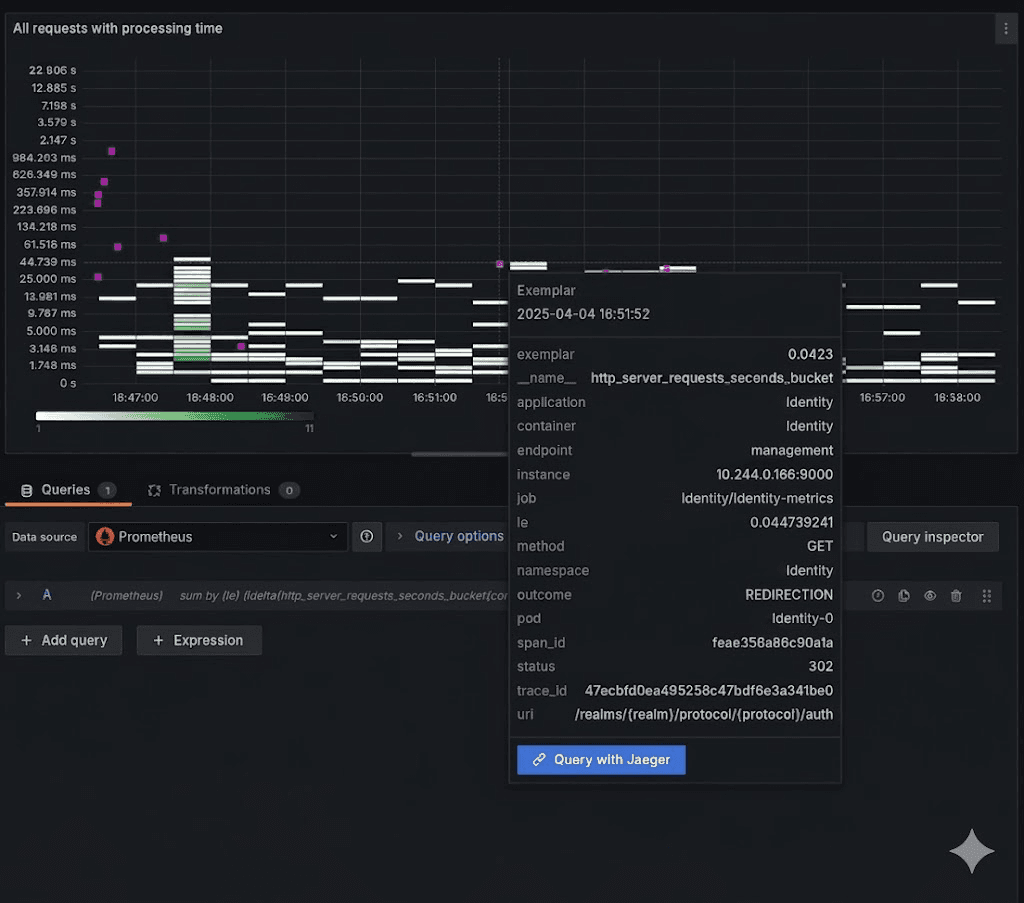
See below for a screenshot of a heatmap visualization for latencies that is showing an exemplar when hovering over one of the pink indicators.
Setting up exemplars
To benefit from exemplars, perform the following steps:
-
Enable metrics for NQRust-Identity as described in guide Gaining insights with metrics.
-
Enable tracing for NQRust-Identity as described in guide Root cause analysis with tracing.
-
Enable exemplar storage in your monitoring system.
For Prometheus, this is a preview feature that you need to enable (opens in a new tab).
-
Scrape the metrics using the
OpenMetricsText1.0.0protocol, which is not enabled by default in Prometheus.If you are using a
ServiceMonitoror similar in a Kubernetes environment, this can be achieved by adding it to the spec of the custom resource:apiVersion: monitoring.coreos.com/v1 kind: ServiceMonitor metadata: ... spec: scrapeProtocols: - OpenMetricsText1.0.0 -
Configure your metrics datasource where to link to for traces.
When using Grafana and Prometheus, this would be setting up a
exemplarTraceIdDestinationsfor the Prometheus datasource, which then points to your tracing datasource that is provided by tools like Jaeger or Tempo. -
Enable exemplars in your dashboards.
Enable the Exemplars toggle in each query on each dashboard where you want to show exemplars. When set up correctly, you will notice little dots or stars in your dashboards that you can click on to view the traces.
- If you do not specify the scrape protocol, Prometheus will by default not send it in the content negotiation, and NQRust-Identity will then fall back to the PrometheusText protocol which will not contain the exemplars.
- If you enabled tracing and metrics, but the request sampling did not record a trace, the exposed metric will not contain any exemplars.
- If you access the metrics endpoint with your browser, the content negotiation will lead to the format PrometheusText being returned, and you will not see any exemplars.
Verifying that exemplars work as expected
Perform the following steps to verify that NQRust-Identity is set up correctly for exemplars:
-
Follow the instructions to set up metrics and tracing for NQRust-Identity.
-
For test purposes, record all traces by setting the tracing ration to
1.0. See Root cause analysis with tracing for recommended sampling settings in production systems. -
Log in to the NQRust-Identity instance to create some traces.
-
Scrape the metrics with a command similar to the following and search for those metrics that have an exemplar set:
$ curl -s http://localhost:9000/metrics \
-H 'Accept: application/openmetrics-text; version=1.0.0; charset=utf-8' \
| grep "#.*trace_id"
This should result in an output similar to the following. Note the additional
#after which the span and trace IDs are added:http_server_requests_seconds_count {...} ... # {span_id="...",trace_id="..."} ...