Phase 2: Configure Portal
In this phase, you will create an OAuth client in the Identity Admin Console, grant it the required permissions, create a test user, and link the Portal to the client.
Prerequisites
- Phase 1 completed — Identity and Portal containers are running.
- Access to the Identity Admin Console at
https://<hostname>:<identity_port>/admin.
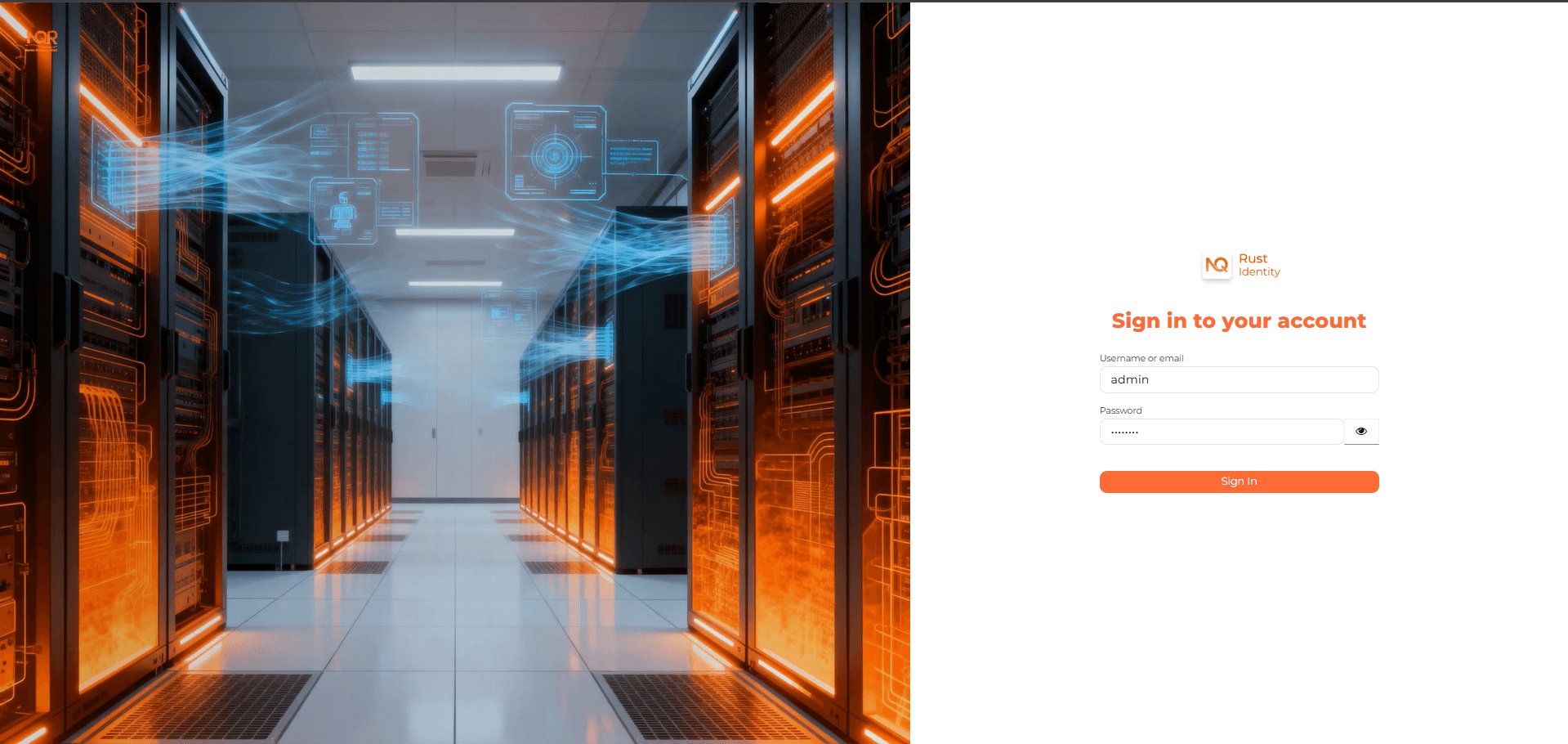
Step 1 — Log in to Identity Admin Console
Open the Identity Admin Console in your browser:
https://<hostname>:<identity_port>/adminThe Identity server uses a self-signed TLS certificate by default. Your browser will show a security warning — accept it to proceed.
Log in with the default admin credentials:
- Username:
admin - Password:
identity
Change the default admin password immediately after first login via Users → admin → Credentials.
Step 2 — Create a realm
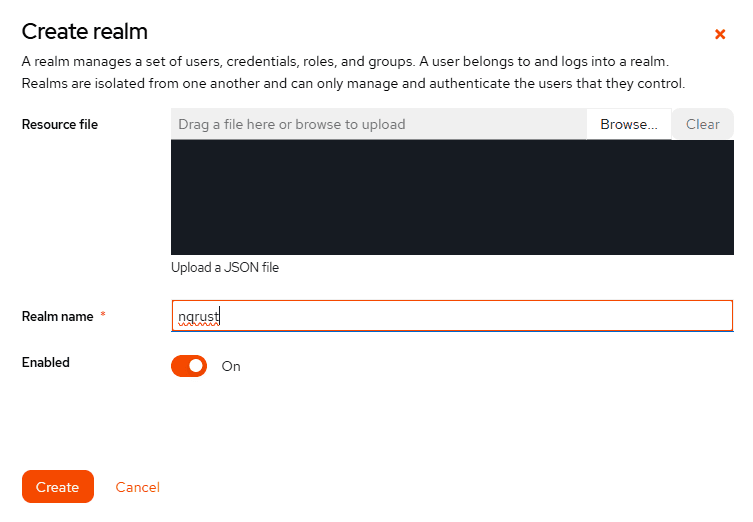
NQRust-Identity groups clients, users, and roles into realms. Create a dedicated realm for Portal:
- In the left sidebar, click the Manage realms menu (the shield icon at the top of the sidebar).
- Click the Create realm button at the top of the realms list.
- In the Realm name field, enter
nqrust. - Click Create.
Step 3 — Create the Portal OAuth client
With the nqrust realm selected (check the realm name shown at the top of the left sidebar), create the OAuth client that the Portal will use. The wizard has three steps: General settings, Capability config, and Login settings.
To open the wizard:
- In the left sidebar, click Clients.
- Click the Create client button.
Step 3.1 — General settings
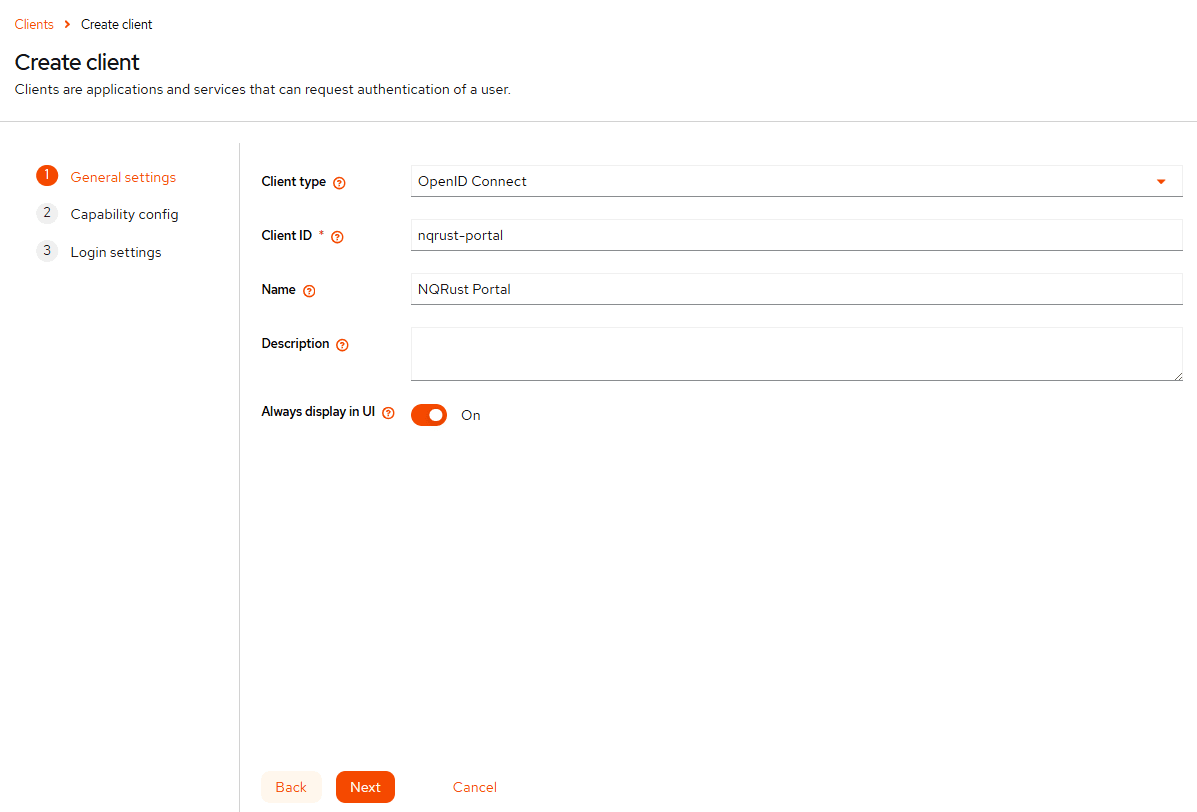
On the first wizard step, fill in the form as follows:
| Field | Value |
|---|---|
| Client type | Leave as OpenID Connect (default). |
| Client ID | Enter nqrust-portal exactly. This value is required and is used by the Portal to identify itself. |
| Name | Enter any human-readable label, for example NQRust Portal. This is shown in the admin console only. |
| Description | Optional. Leave blank or add a short note such as OAuth client for NQRust-Identity Portal. |
| Always display in UI | Toggle to On. |
Click Next to continue.
Step 3.2 — Capability config
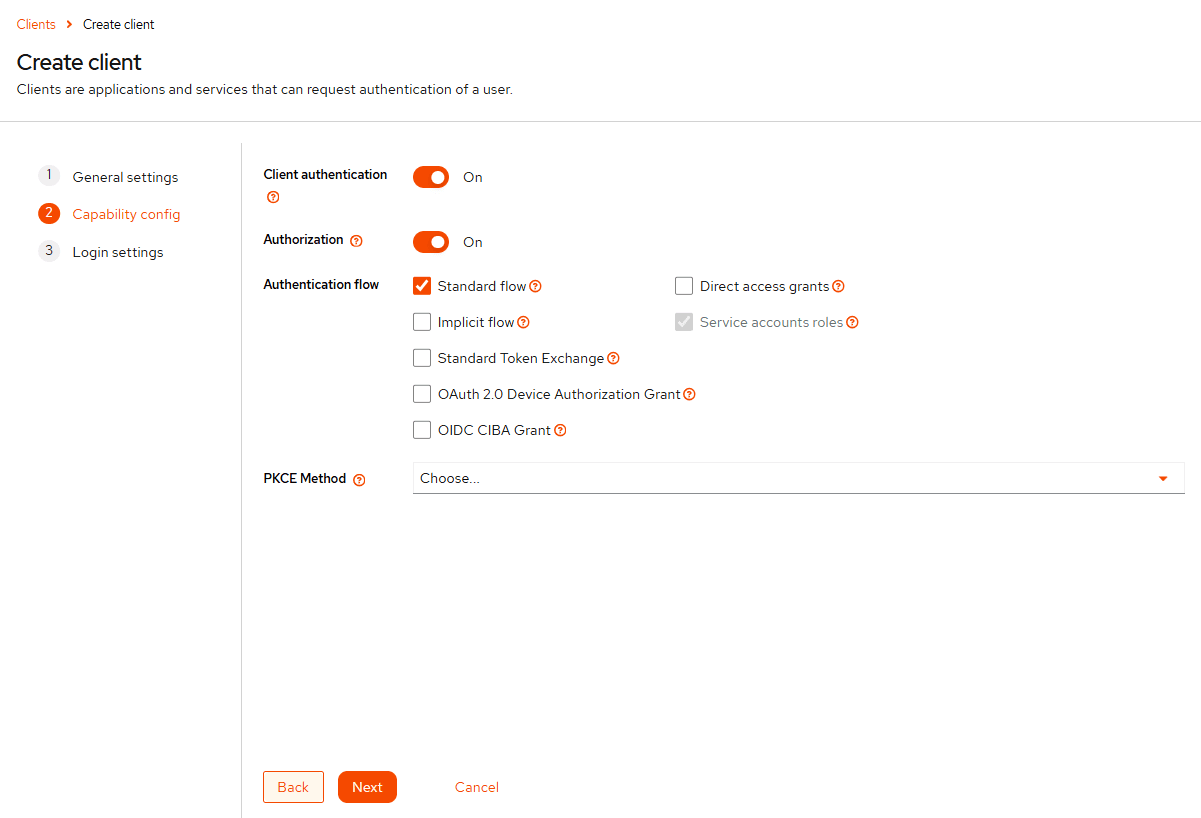
On the second wizard step, configure the following options:
- Client authentication — toggle to
On. - Authorization — toggle to
On. - Authentication flow — make sure these two checkboxes are checked:
- ✅ Standard flow
- ✅ Service accounts roles
- PKCE Method — leave as
Choose...(no value).
Click Next to continue.
Step 3.3 — Login settings
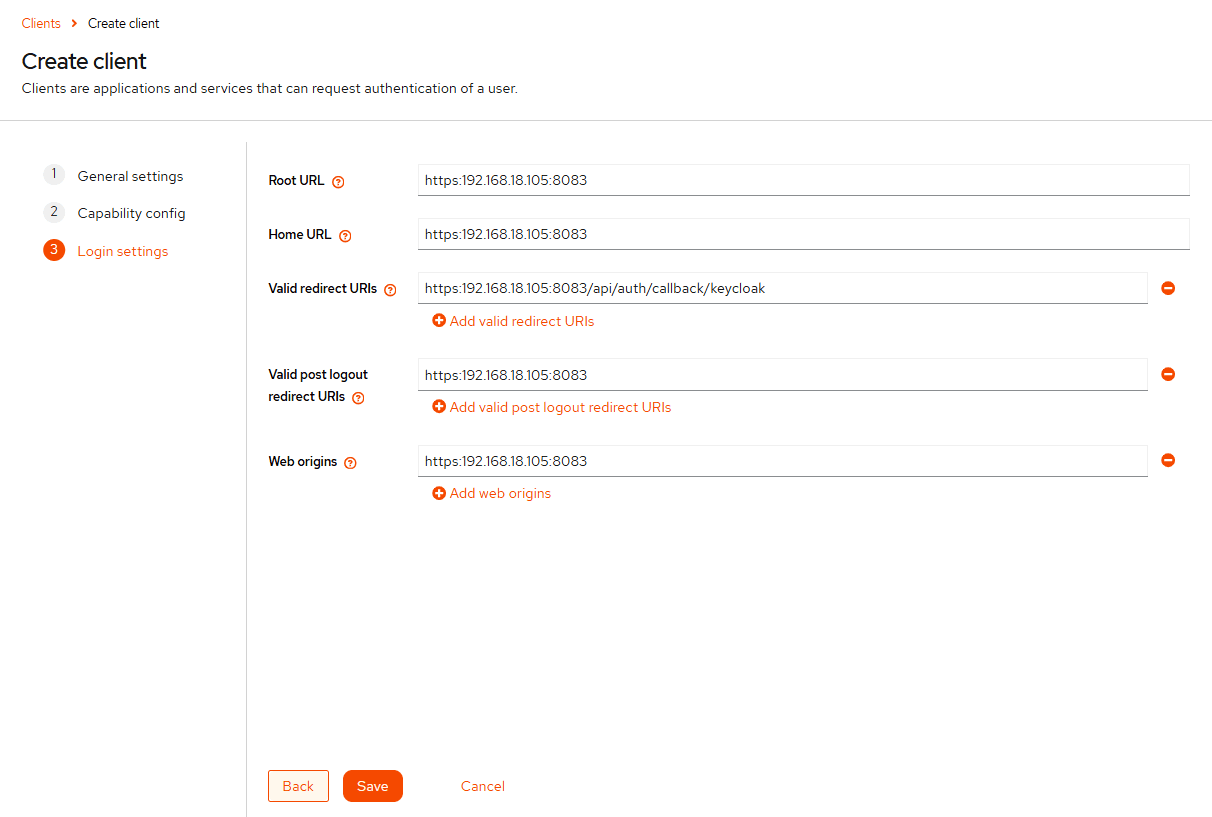
Use the same address everywhere. The <hostname> placeholder below can be either an IP address (e.g. 192.168.1.100) or a DNS name (e.g. portal.company.com) — both are valid. The critical rule is that the value you enter here must exactly match the address users will type in their browser to open the Portal. OAuth redirect URIs are matched as exact strings; a mismatch (e.g. registering a hostname but browsing by IP, or vice versa) will cause login to fail with an Invalid parameter: redirect_uri error.
If you are not sure which to use, prefer the IP address of the server — it works without any DNS or hosts file setup on client machines.
On the Login settings step, configure the URLs based on your hostname and portal port:
| Field | Value |
|---|---|
| Root URL | https://<hostname>:<portal_port> |
| Home URL | https://<hostname>:<portal_port> |
| Valid redirect URIs | https://<hostname>:<portal_port>/api/auth/callback/keycloak |
| Valid post logout redirect URIs | https://<hostname>:<portal_port> |
| Web origins | https://<hostname>:<portal_port> |
Example with hostname 192.168.1.100 and portal port 8083:
Root URL:                    https://192.168.1.100:8083
Home URL:                    https://192.168.1.100:8083
Valid redirect URIs:         https://192.168.1.100:8083/api/auth/callback/keycloak
Valid post logout URIs:      https://192.168.1.100:8083
Web origins:                 https://192.168.1.100:8083
Click Save.
Step 4 — Assign service account roles to the client
The Portal client needs permission to manage realm resources (users, roles, clients) via the Identity REST API. You grant these permissions through the client's service account.
- On the
nqrust-portalclient page, click the Service accounts roles tab.
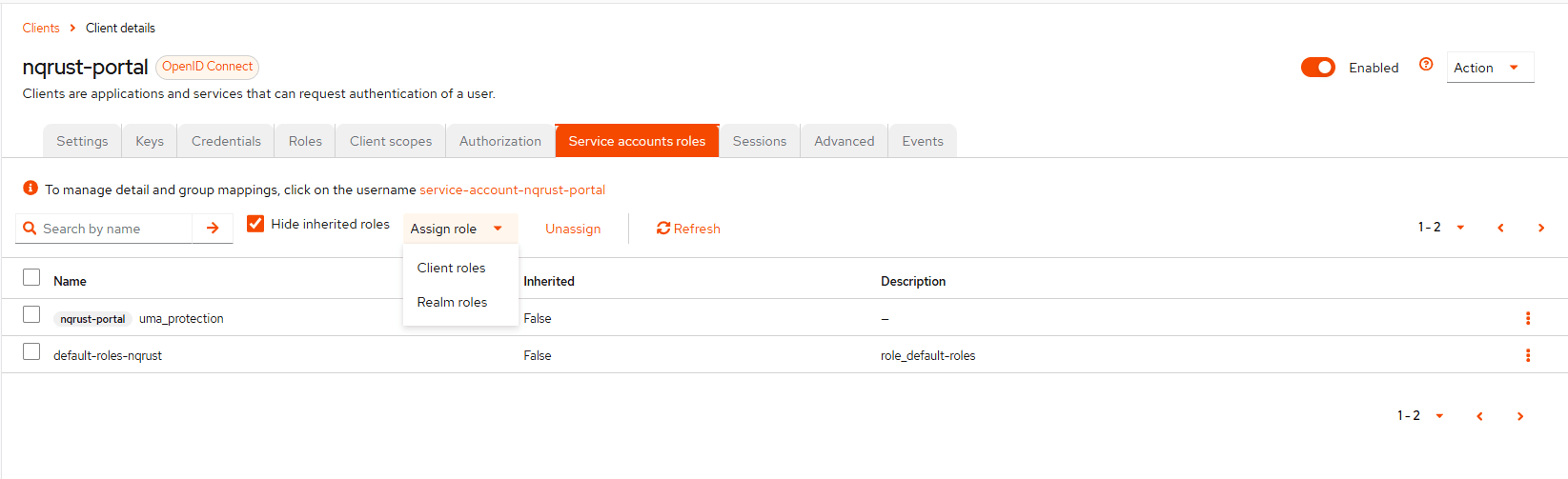
- Click Assign role. A dialog appears asking which type of role to assign — choose Client roles (not Realm roles), since
realm-managementis itself a client. - In the search field, type
realm-managementto filter the list. - Select every role from the
realm-managementclient. The checkbox in the table header only selects roles on the current page — so after checking it, use the pagination controls at the bottom of the table to move to the next page and check the header again. Repeat until every page has all roles checked. To make this faster, you can increase the rows-per-page setting at the bottom of the table so all roles fit on a single page. - Click Assign.
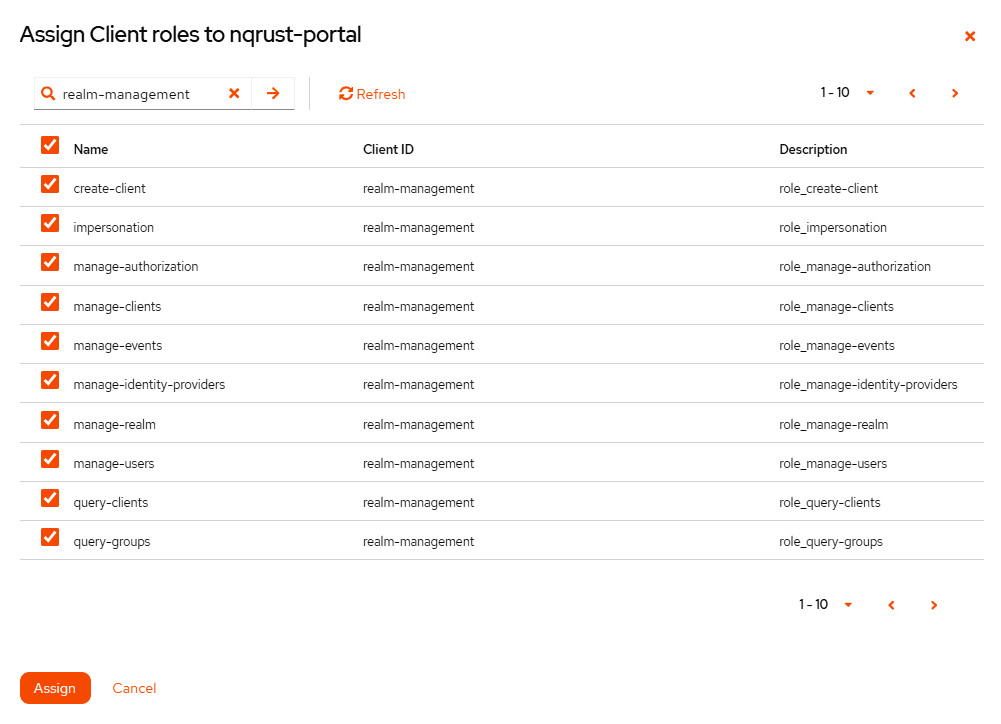
The realm-management client exposes roles such as manage-users, manage-clients, manage-realm, view-users, view-clients, and so on. The Portal needs these roles to provision users, rotate secrets, and manage realm configuration.
Do not skip this step. Without the realm-management roles, the Portal will fail to load user/role data and some admin features will not work.
Step 5 — Copy the client secret
With the client configured and its service account permissioned, click the Credentials tab of the nqrust-portal client:
- Locate the Client secret field.
- Click the copy button to copy the secret to your clipboard.
- Keep this value handy — you will paste it into the installer in a later step.
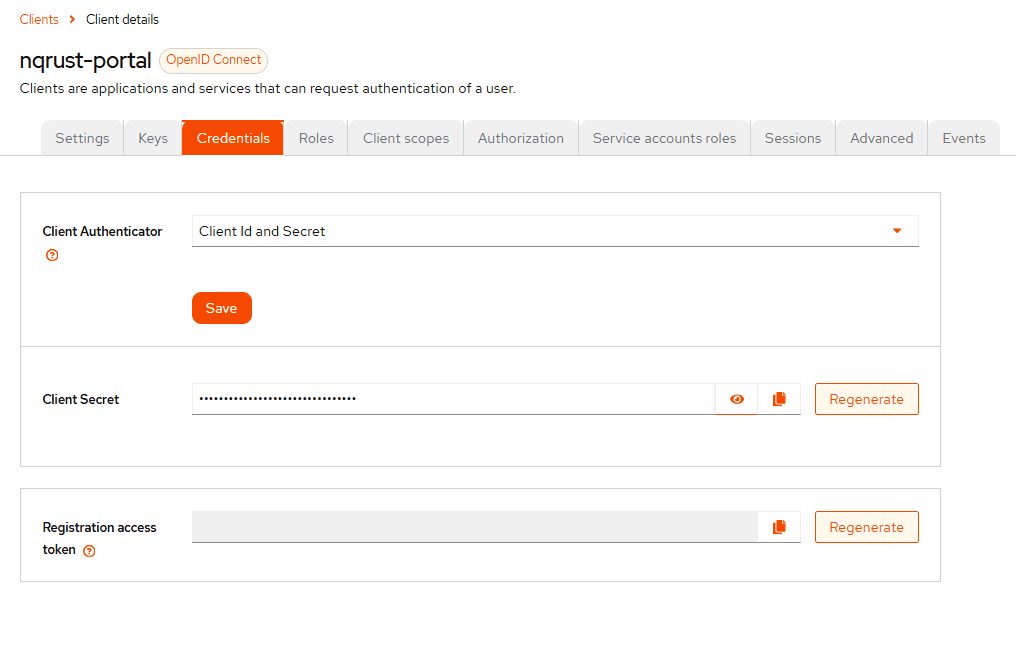
Treat the client secret like a password. Do not share it or commit it to version control.
Step 6 — Create a user
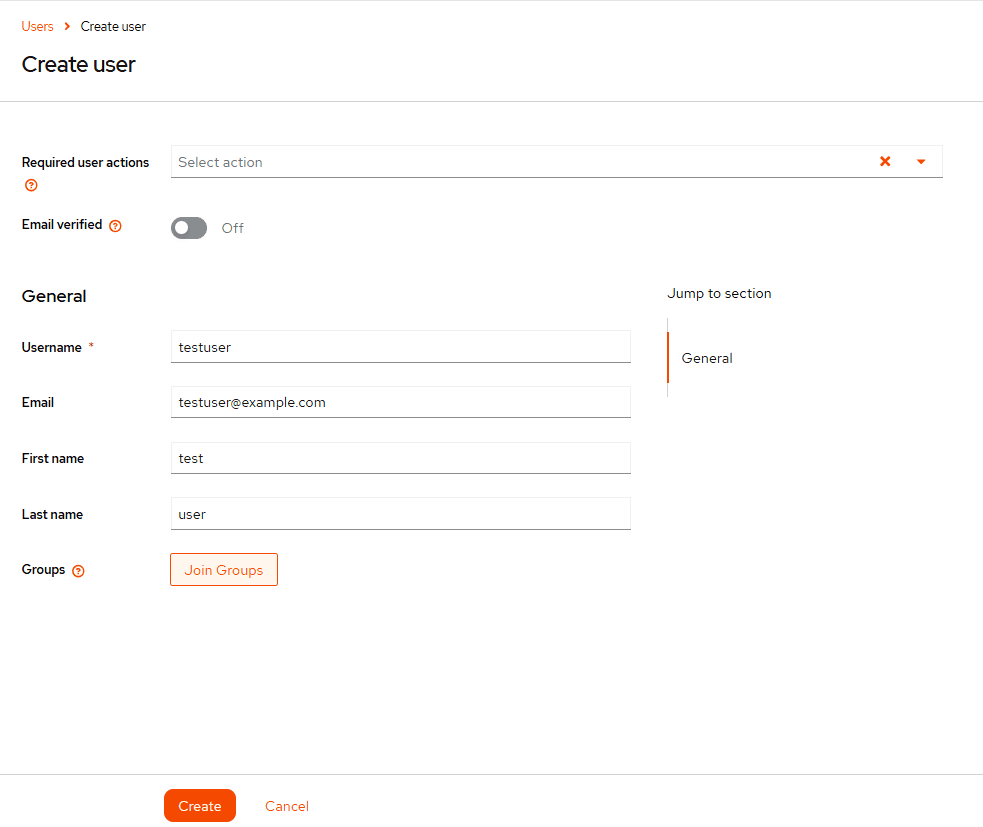
You need at least one user in the nqrust realm to log in to the Portal.
- Make sure the
nqrustrealm is still selected. - In the left sidebar, click Users.
- Click Add user.
- Fill in the basic fields:
- Username — e.g.
testuser - Email — e.g.
testuser@example.com - Email verified — toggle to
On - First name — e.g.
Test - Last name — e.g.
User
- Username — e.g.
- Click Create.
Set the user password
After the user is created, the user detail page opens. Set an initial password:
- Click the Credentials tab.
- Click Set password.
- Enter a password and its confirmation.
- Set Temporary to
Offif you don't want the user to be forced to change password on first login. - Click Save, then confirm on the dialog.
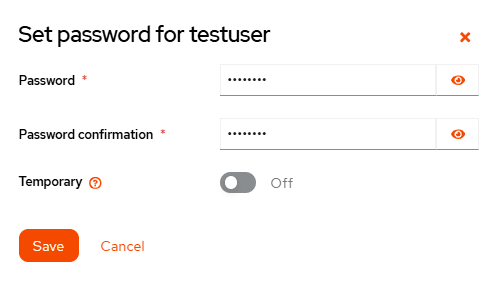
For a production deployment, keep Temporary set to On so each new user must set their own password after the first login.
Step 7 — Fill the Portal form in the installer
Switch back to the installer terminal. If you exited after Phase 1, re-launch it and select Install Portal from the home menu. Otherwise, press i on the Identity success screen to continue.
The Portal form asks for three values:
| Field | Description | Value |
|---|---|---|
| Realm Name | The realm you created in Identity | nqrust |
| Client ID | The OAuth client ID | nqrust-portal |
| Client Secret | The secret copied from Identity | (paste from clipboard) |
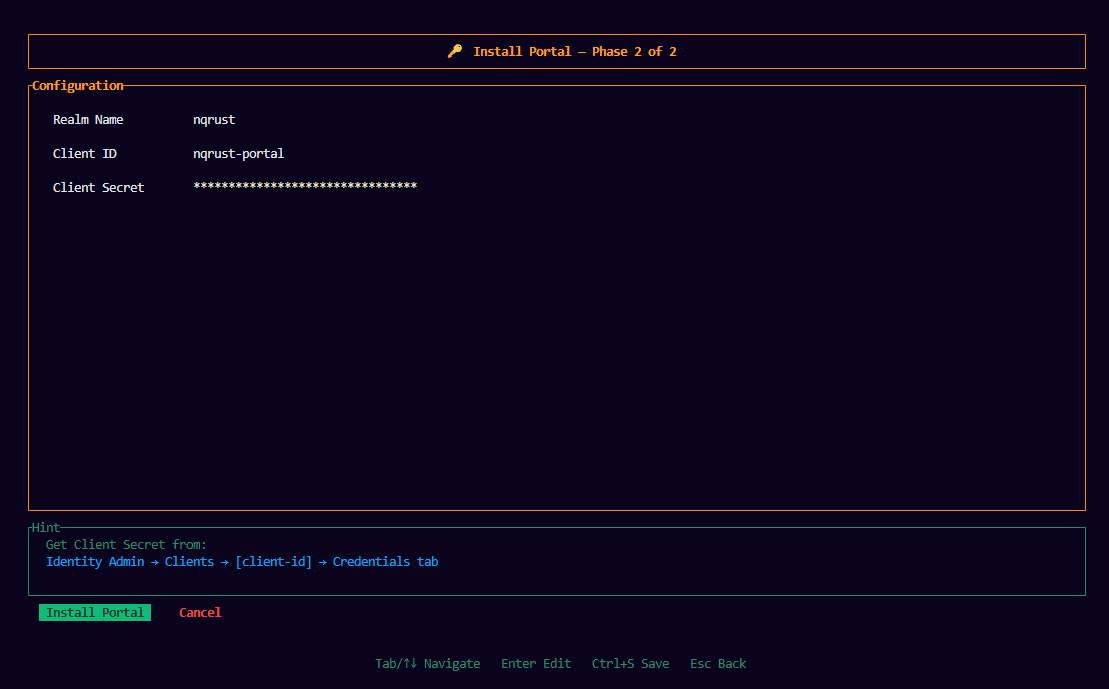
Navigate to the Install button and press Enter to apply the configuration.
Step 8 — Portal restart
The installer updates the .env file with the new client configuration and restarts the Portal container:
docker compose up -d --force-recreate portal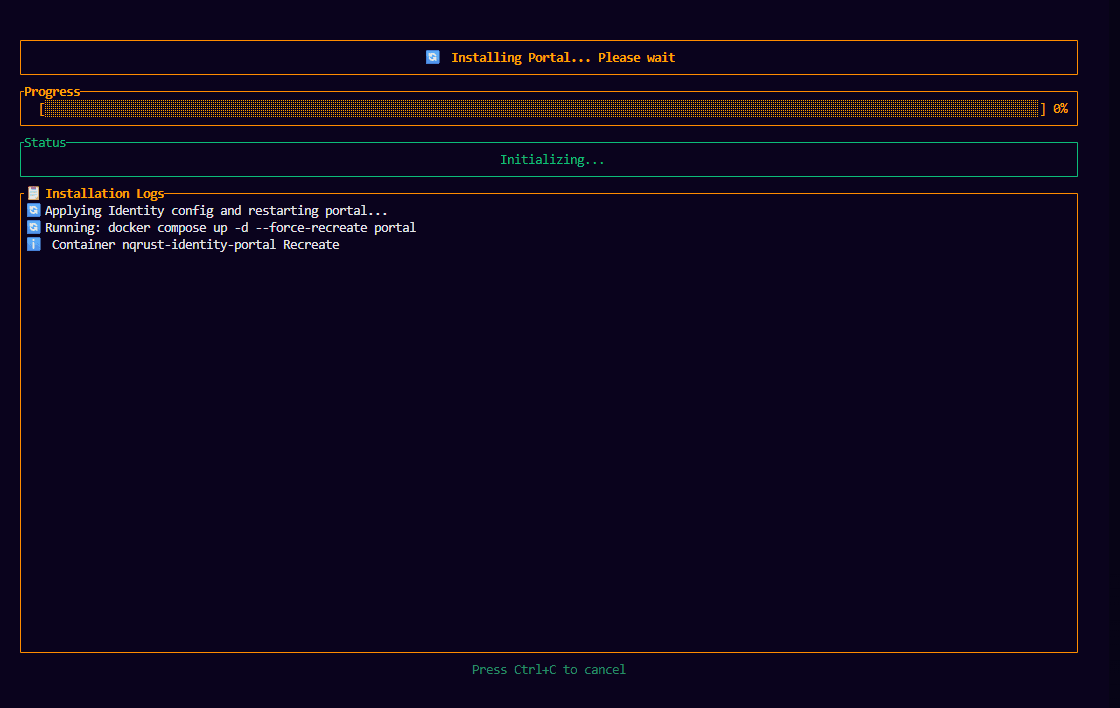
Step 9 — Installation complete
Once the Portal container restarts successfully, the final success screen shows the Portal URL:
Portal: https://<hostname>:<portal_port>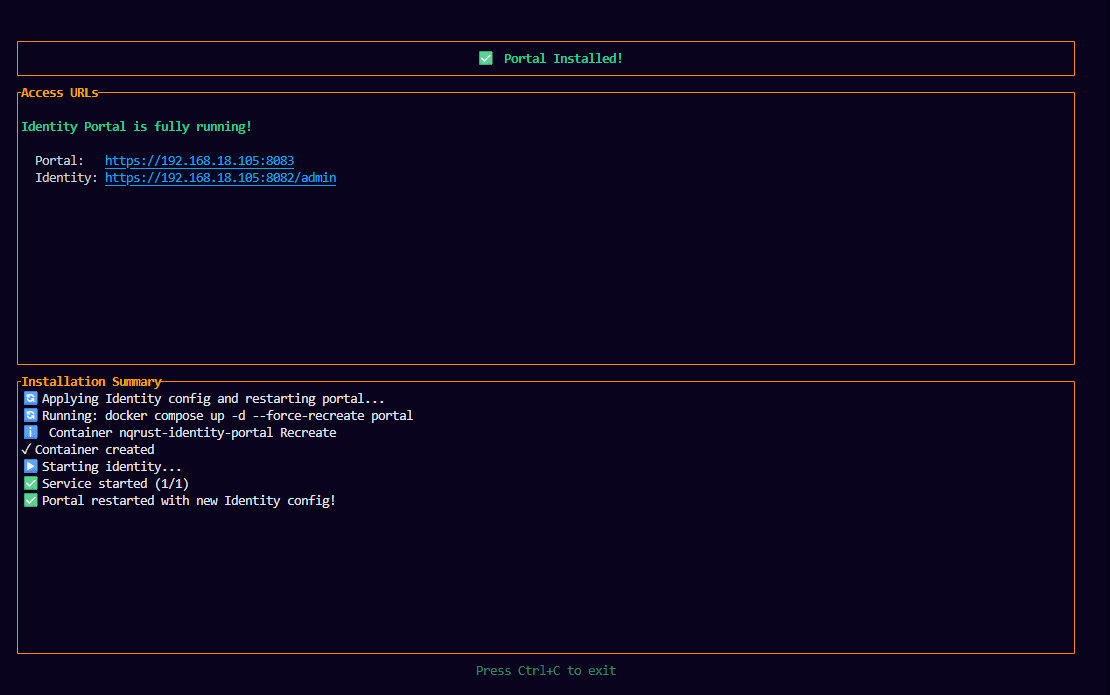
Step 10 — Verify the installation
Open the Portal URL in your browser:
https://<hostname>:<portal_port>You will be redirected to the Identity login page served by the nqrust realm. Log in with the user you created in Step 6.
After a successful login, you should see the Portal home screen.
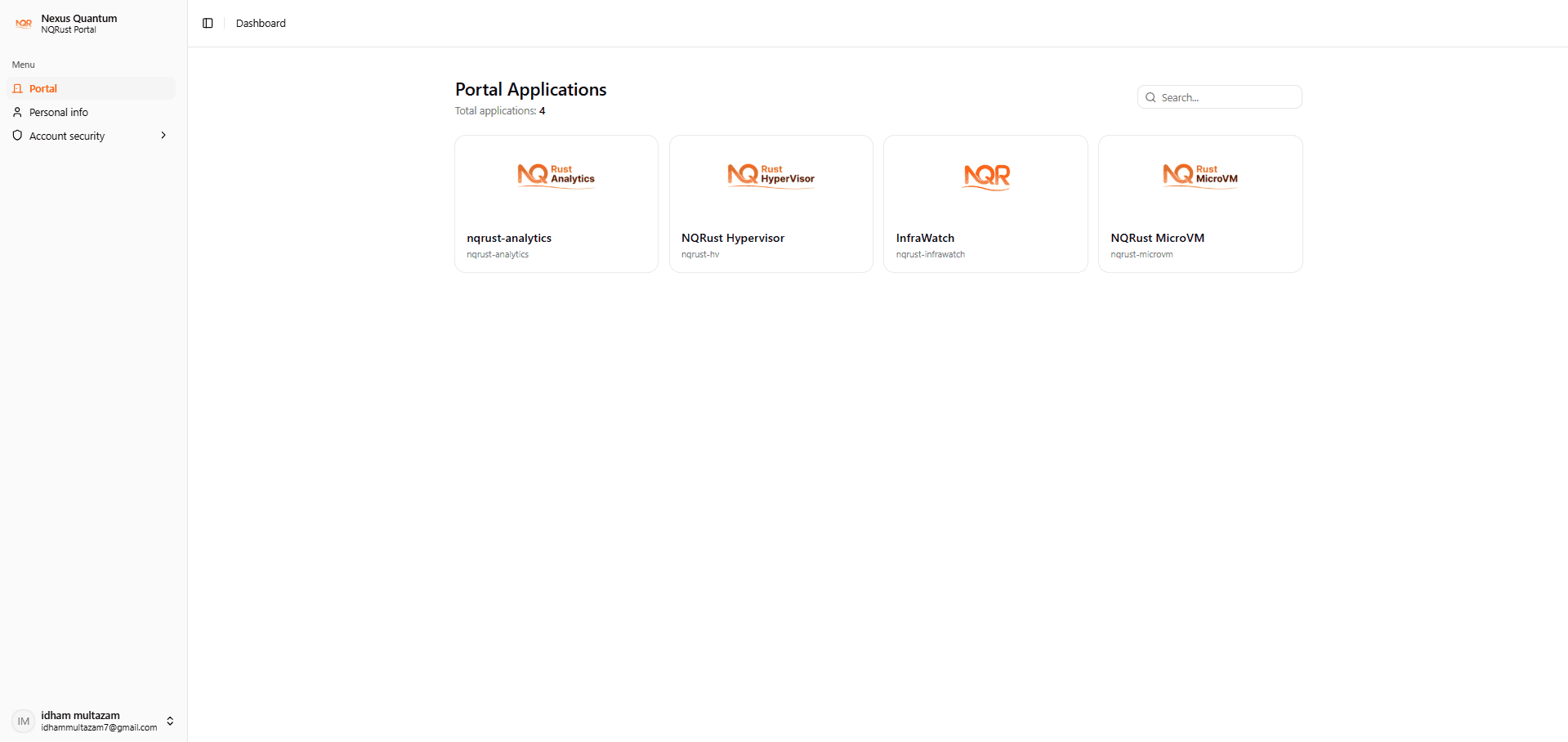
Congratulations — your NQRust-Identity Portal is fully installed and ready to use!