Add a new client
This guide walks you through registering an additional OAuth client in NQRust-Identity, beyond the Portal client created in Phase 2. We use NQRust Analytics as the running example — replace the names with whatever fits your application.
Prerequisites
- Phase 1 and Phase 2 are completed.
- You can log in to the Identity Admin Console and the
nqrustrealm exists. - Your new application is ready to receive a Client ID and Client Secret.
Step 1 — Open the Identity Admin Console
Open the Identity Admin Console in your browser and log in:
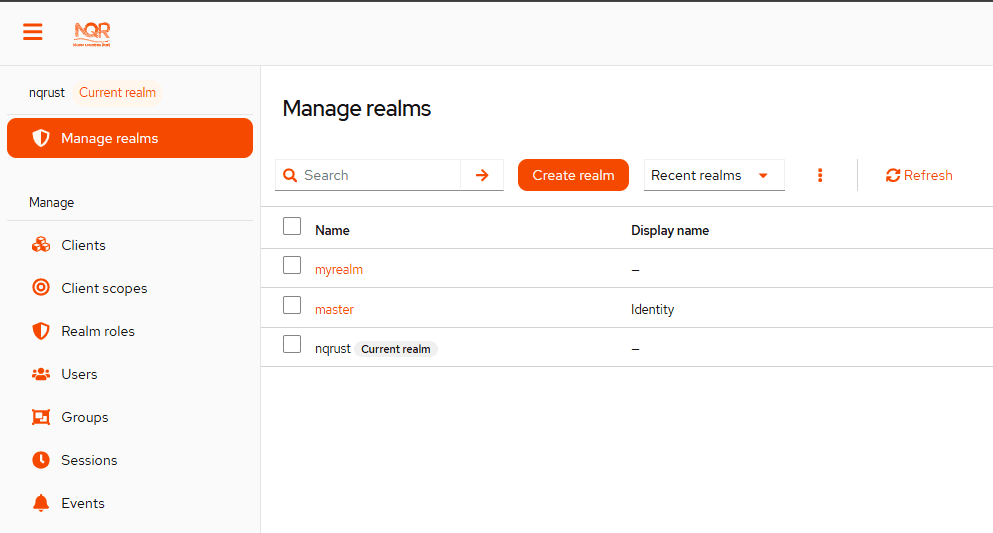
https://<hostname>:<identity_port>/adminMake sure the nqrust realm is selected (check the realm name shown at the top of the left sidebar). If a different realm is selected, click the realm name and switch to nqrust.
Step 2 — Create the OAuth client
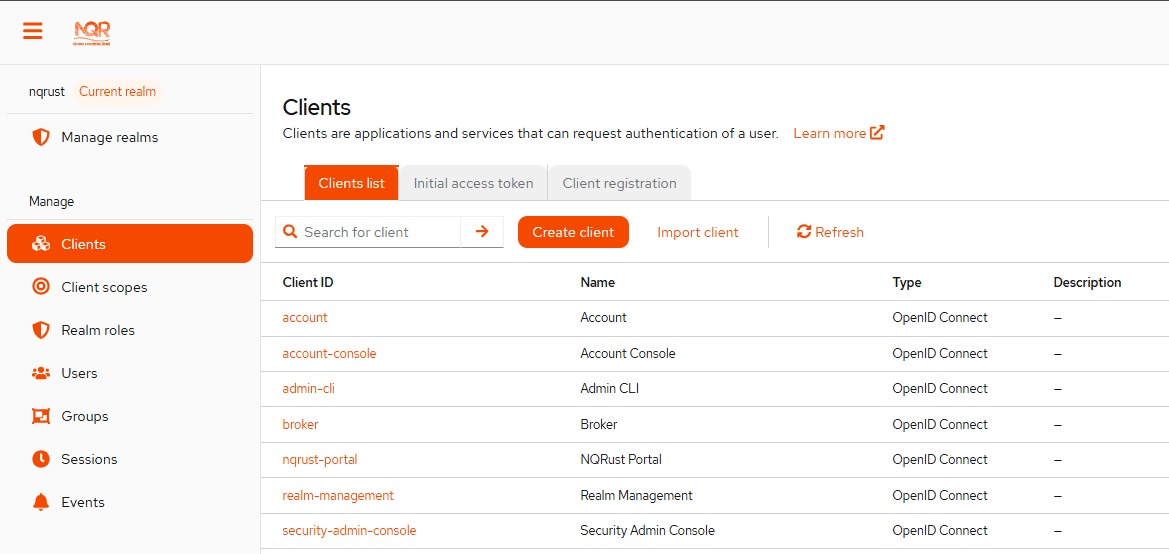
In the left sidebar, click Clients, then click the Create client button. The wizard has three steps: General settings, Capability config, and Login settings.
Step 2.1 — General settings
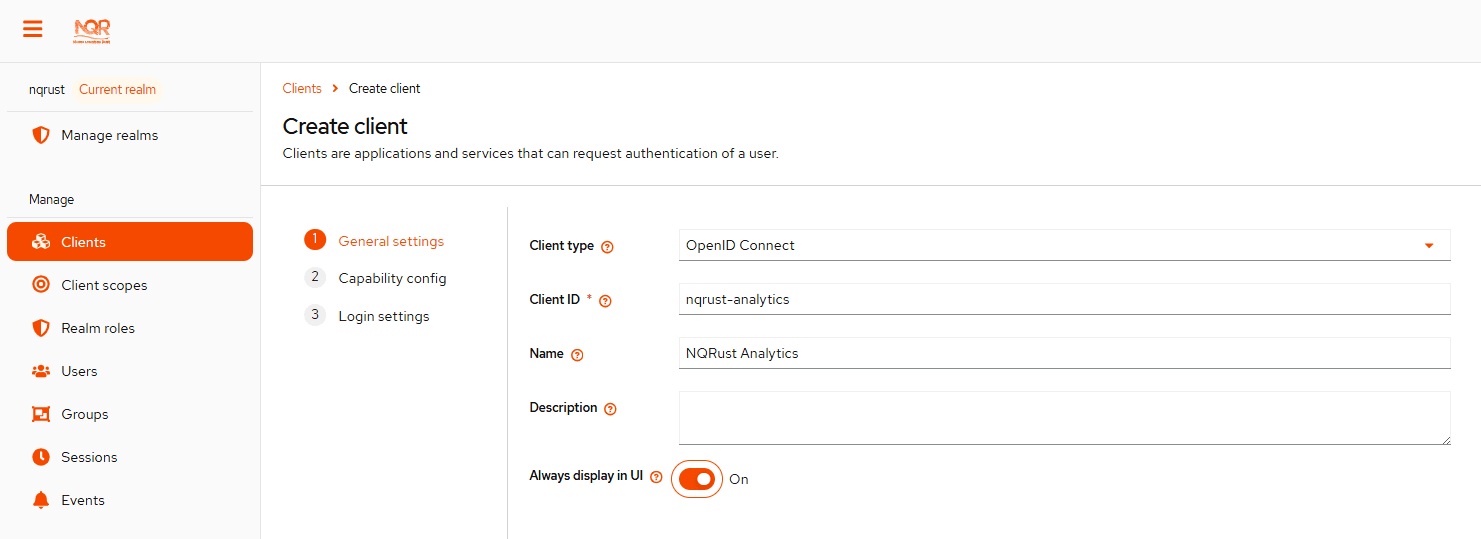
On the first wizard step, fill in the form as follows:
| Field | Value |
|---|---|
| Client type | Leave as OpenID Connect (default). |
| Client ID | Enter nqrust-analytics exactly. This value is required and is used by your application to identify itself. |
| Name | Enter any human-readable label, for example NQRust Analytics. This is shown in the admin console only. |
| Description | Optional. Leave blank or add a short note such as OAuth client for NQRust Analytics. |
| Always display in UI | Toggle to On. |
Click Next to continue.
Step 2.2 — Capability config
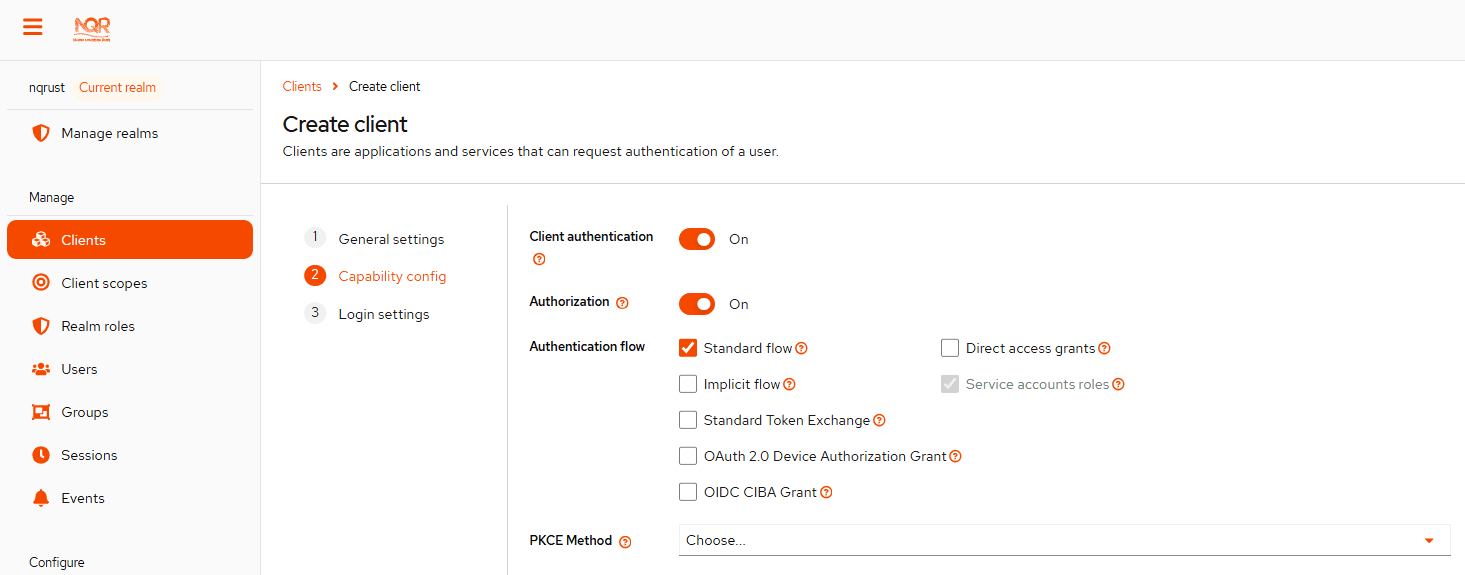
On the second wizard step, configure the following options:
- Client authentication — toggle to
On. - Authorization — toggle to
On. - Authentication flow — make sure these two checkboxes are checked:
- ✅ Standard flow
- ✅ Service accounts roles
- PKCE Method — leave as
Choose...(no value).
Click Next to continue.
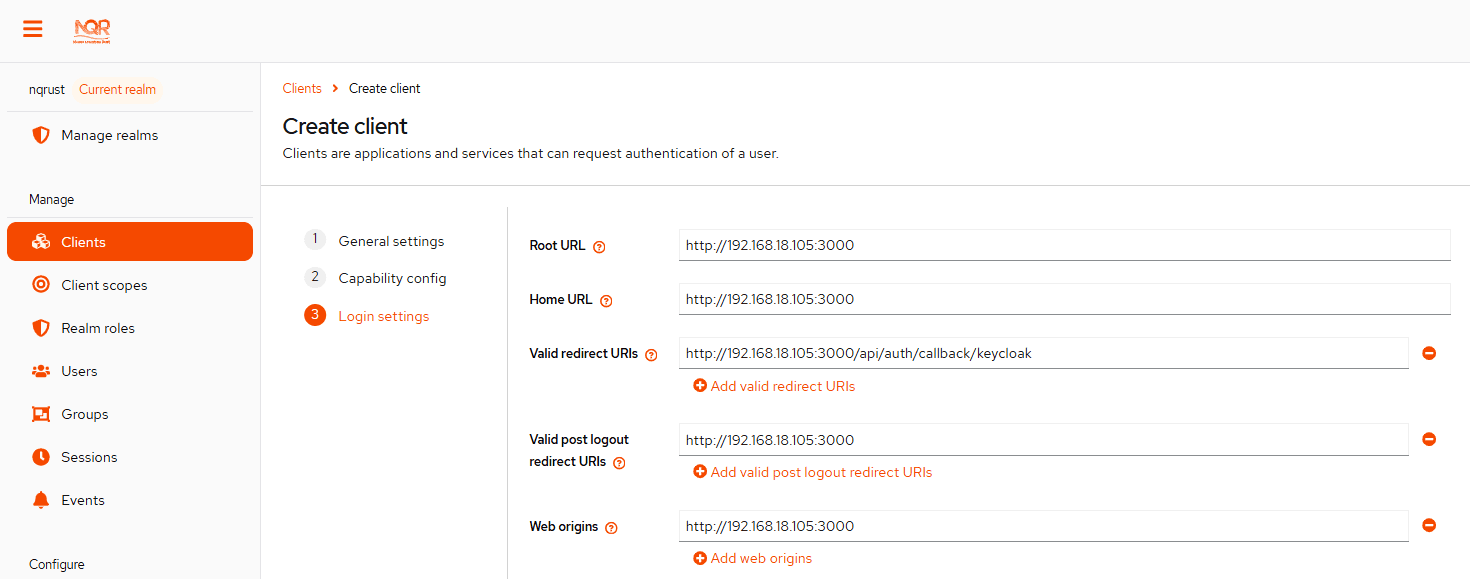
Step 2.3 — Login settings
On the Login settings step, fill in the URLs that match where your application will be hosted. Each application has its own host, port, and callback path, so adjust the values to fit your setup:
| Field | Description |
|---|---|
| Root URL | The base URL of your application, e.g. https://analytics.example.com. |
| Home URL | Usually the same as Root URL. |
| Valid redirect URIs | The OAuth callback URL your application listens on, e.g. https://analytics.example.com/auth/callback. |
| Valid post logout redirect URIs | The URL Identity should redirect to after logout, e.g. https://analytics.example.com. |
| Web origins | The browser origin(s) allowed to call Identity, e.g. https://analytics.example.com. |
Click Save.
Step 3 — Copy the client secret and configure your application
Click the Credentials tab of the nqrust-analytics client:
- Locate the Client secret field.
- Click the copy button to copy the secret to your clipboard.
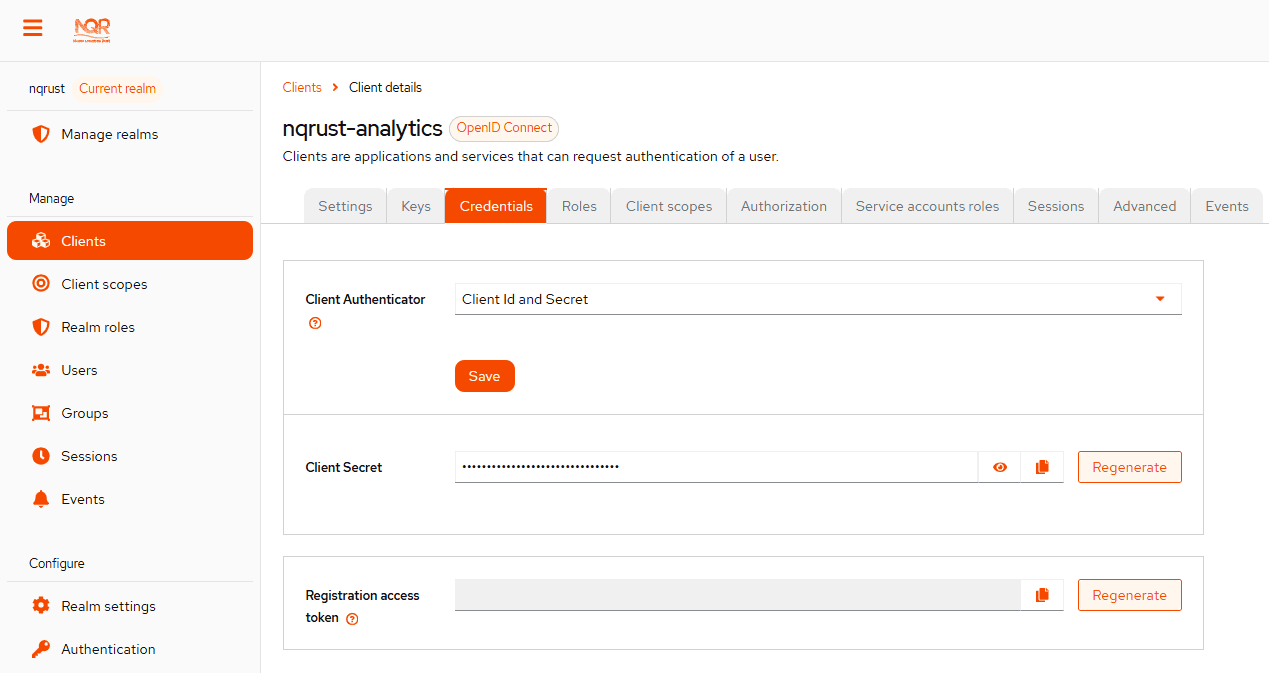
Now paste the Client ID and Client Secret into your application's configuration. The exact mechanism depends on the framework or language your application uses — refer to your application's documentation for details. As a common example, many applications read these values from environment variables:
OIDC_CLIENT_ID=nqrust-analytics
OIDC_CLIENT_SECRET=<paste-secret-here>
OIDC_ISSUER=https://<hostname>:<identity_port>/realms/nqrustTreat the client secret like a password. Do not share it or commit it to version control.
Step 4 — Create a realm role for the client
Create a realm role that you will assign to users who should have access to this client.
- Make sure the
nqrustrealm is still selected. - In the left sidebar, click Realm roles.
- Click Create role.
- Set Role name to
nqrust-analytics. - (Optional) Add a description such as
Grants access to NQRust Analytics. - Click Save.
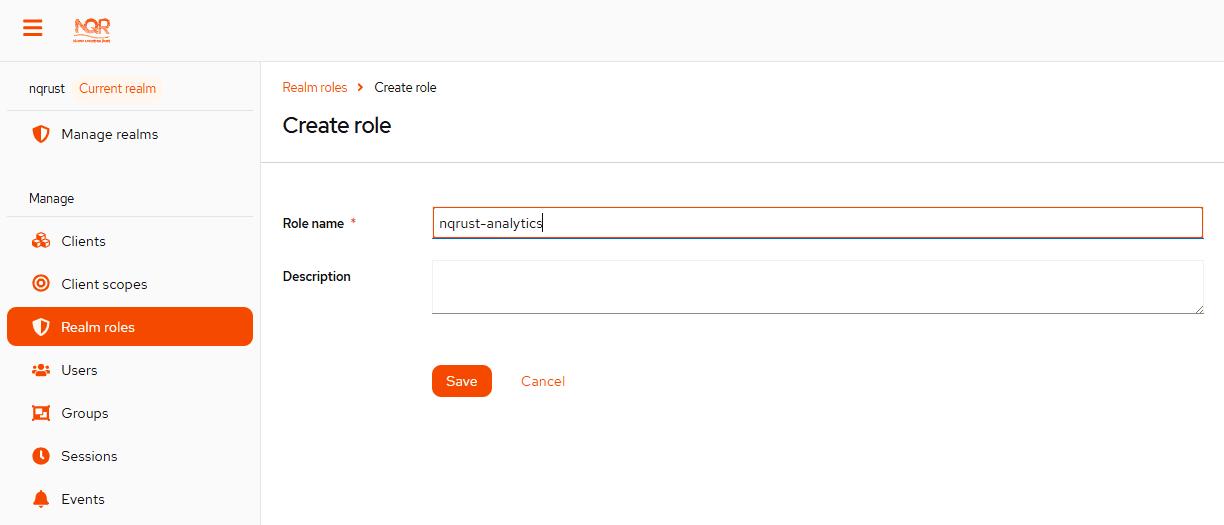
Naming the role to match the Client ID (nqrust-analytics) keeps things consistent and easy to reason about, but you can use any name your application's authorization logic expects.
Step 5 — Assign the role to users
Grant users the nqrust-analytics role so they can access the application.
- In the left sidebar, click Users.
- Click the username you want to grant access to. (If the user doesn't exist yet, click Add user first and create one — see Phase 2, Step 6 for the user creation steps.)
- On the user detail page, click the Role mapping tab.
- Click Assign role. A dialog appears asking which type of role to assign — choose Realm roles.
- Check the box next to the
nqrust-analyticsrole. - Click Assign.
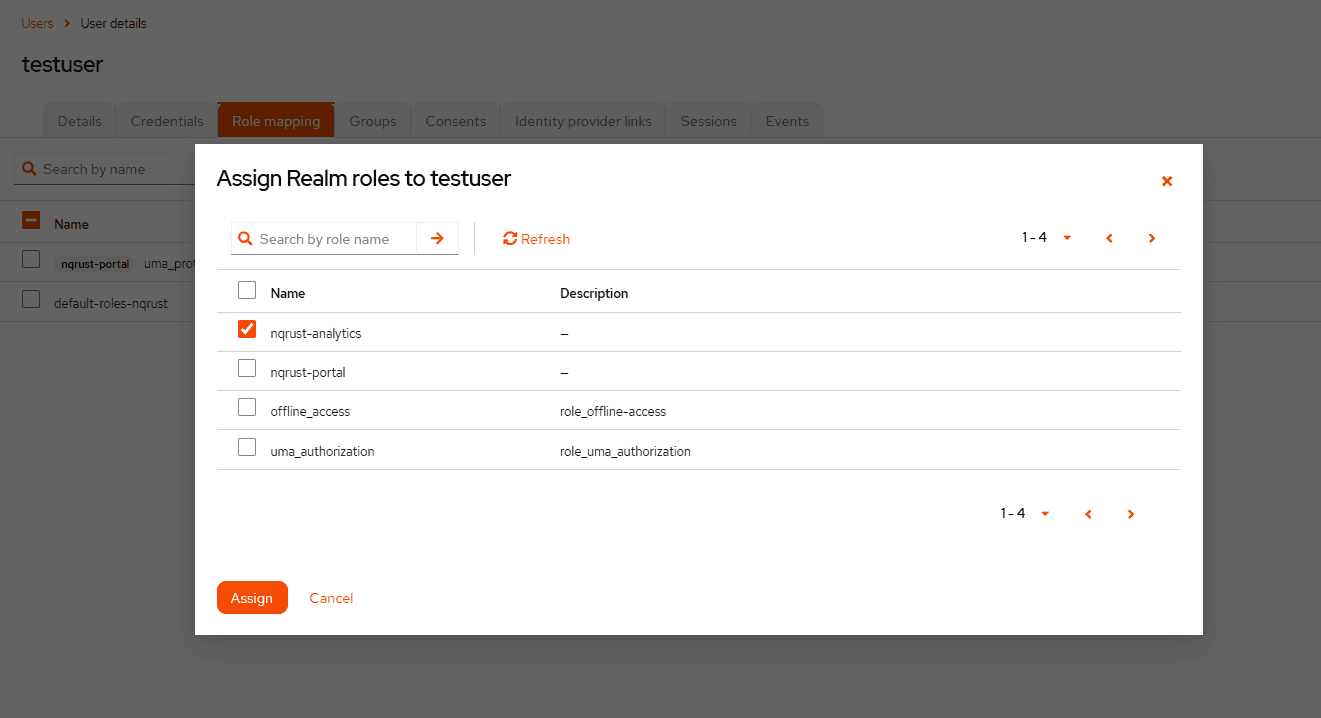
Repeat this step for every user that needs access to the new client.
Your new client is now registered, configured, and ready to authenticate users.