Phase 1: Install Identity
In this phase, you will configure the ports and deploy the Identity and Portal services.
Launch the installer
If you haven't already, run the installer from the directory where you want configuration files to be stored:
./nqrust-portal-airgappedThe installer detects airgapped mode and loads the bundled Docker images into Docker:
Installer running in offline mode...
Loading bundled images, please wait...
Once images are loaded, the Home menu appears.
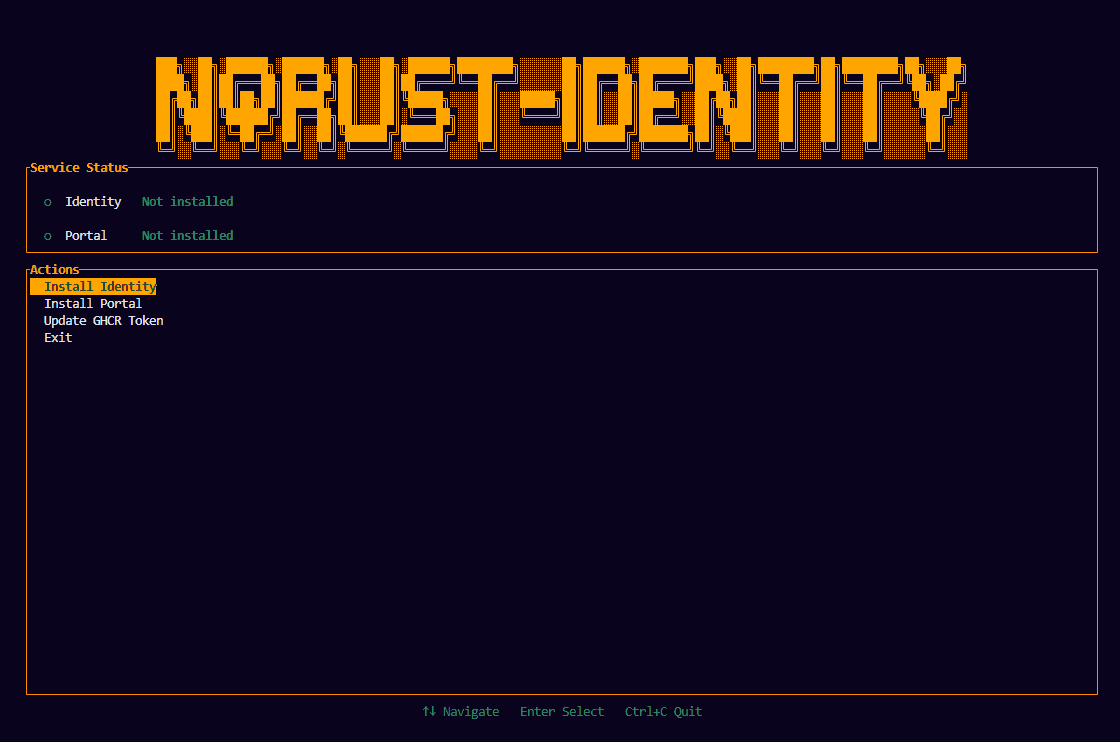
Select "Install Identity"
Use the arrow keys to navigate and press Enter to select Install Identity.
Fill the Identity form
The Identity form asks for two values:
| Field | Description | Example |
|---|---|---|
| Identity Port | External HTTPS port for Identity Admin Console | 8082 (default) |
| Portal Port | External HTTPS port for Portal | 8083 (default) |
The server hostname is detected automatically — you only need to set the ports.
Form navigation
- Tab or Up/Down arrows — Move between fields
- Enter — Edit the selected field
- Esc — Stop editing the current field
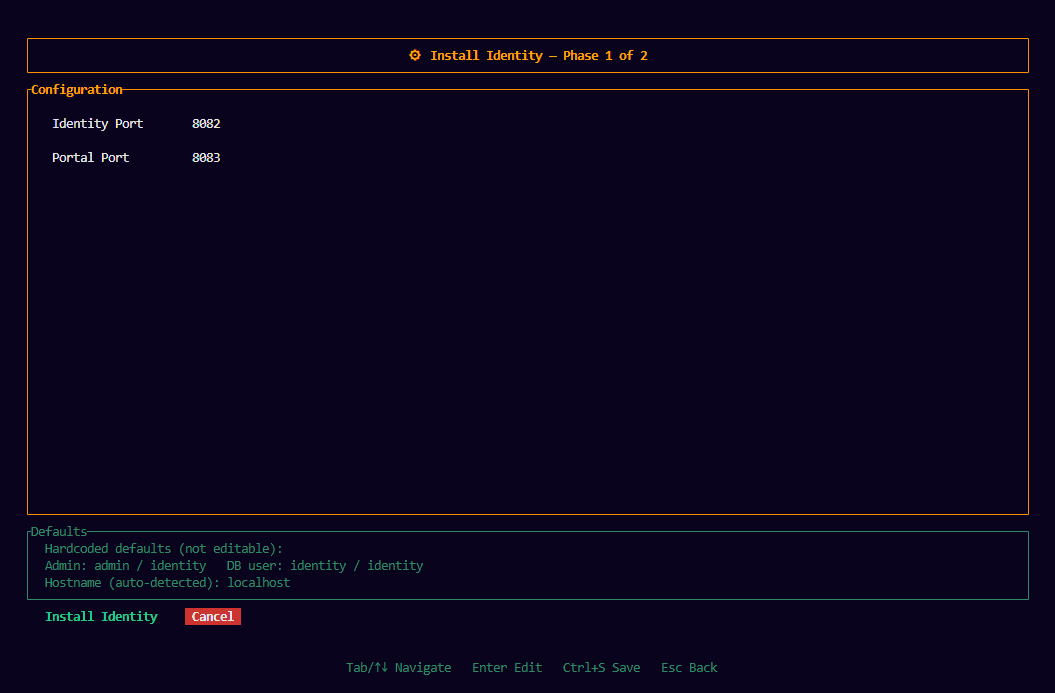
Both ports must be numbers between 1024 and 65535, and they must be different from each other. Make sure no other service on your server is using these ports.
Once all fields are valid, navigate to the Install button and press Enter to start the installation.
Installation in progress
The installer generates the configuration files, sets up the Docker Compose bundle, and starts the required services. You will see a progress bar and real-time log output as each service starts.
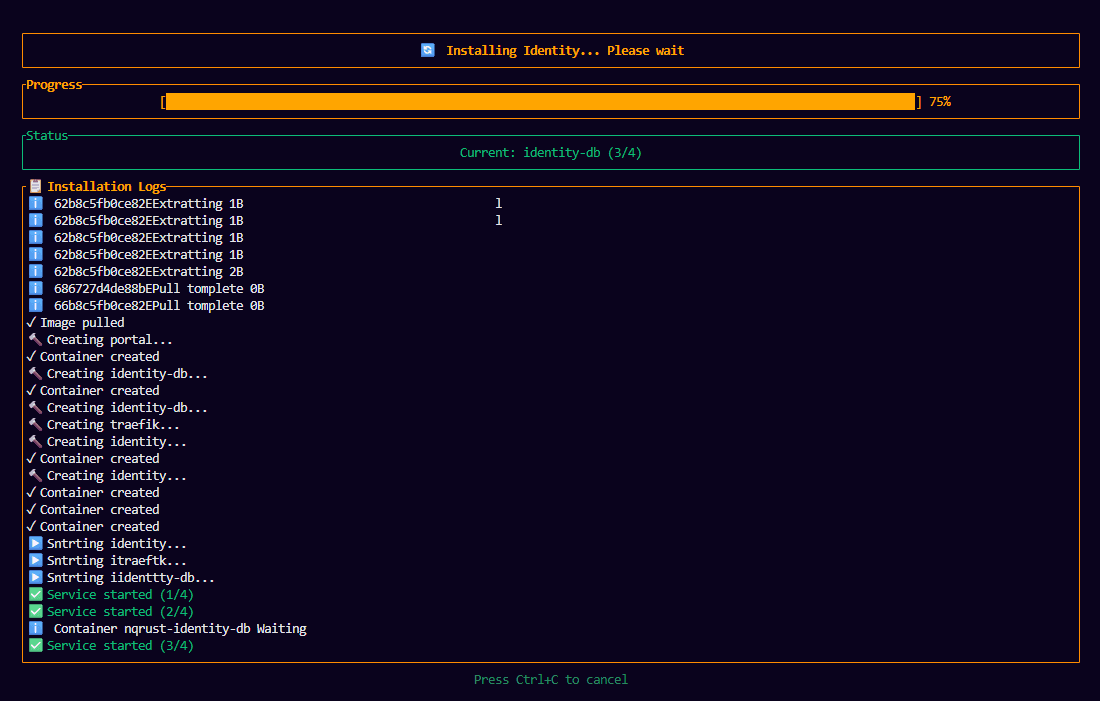
The first startup may take 1-3 minutes as the services initialize their databases and perform health checks.
Installation complete
Once all services are running, the success screen appears with the access URLs:
Identity Admin: https://<hostname>:<identity_port>/admin
Portal:         https://<hostname>:<portal_port>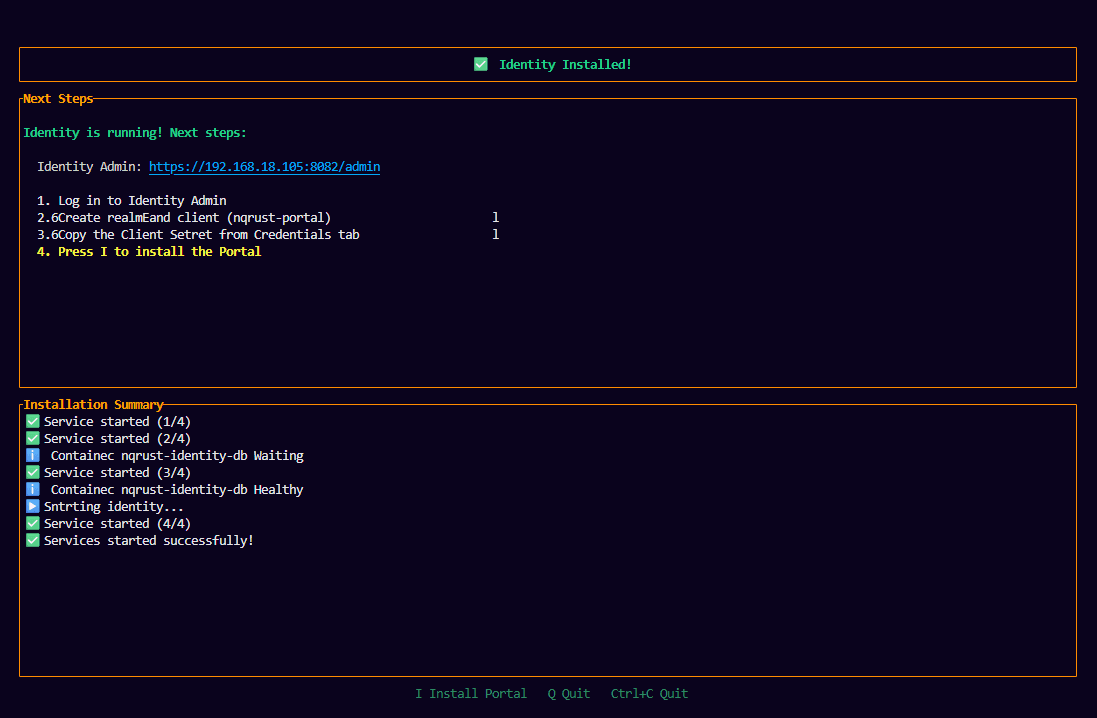
The Portal is not fully functional yet. You need to complete Phase 2: Configure Portal to link it to an OAuth client in Identity.
Next step
Press i on the success screen to proceed to Phase 2. Alternatively, you can press q to exit the installer now and continue later by re-launching it.
Continue with Phase 2: Configure Portal →